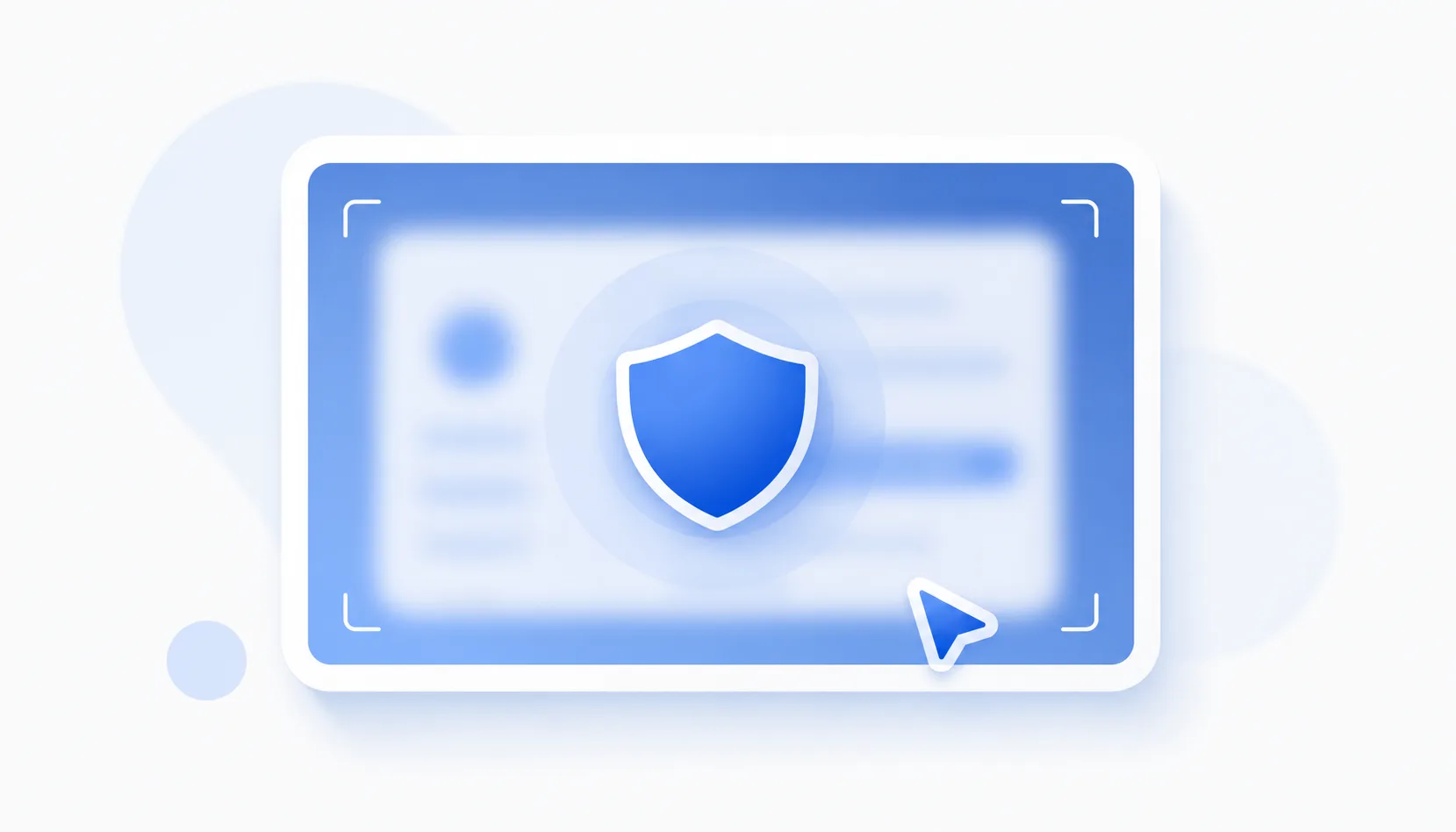
To blur sensitive information in a screenshot, cover it before you share: names, emails, tokens, account numbers. In FastCapture, the blur tool is a Pro feature, and on the free tier you can draw a solid box over the data instead. For truly sensitive data, a solid block is actually safer than blur, which can sometimes be reversed. Here is how to redact a screenshot properly.
What to hide before sharing a screenshot
Before a screenshot leaves your screen, scan it for anything you would not post publicly:
- Personal data: names, emails, phone numbers, addresses.
- Credentials and secrets: passwords, API keys, tokens, session cookies.
- Financial and account numbers, license keys.
- Anything internal or private in the background.
How to blur sensitive info with FastCapture (Pro)
- Capture the screenshot.
- Use the blur tool (part of Pro) to brush over the sensitive area.
- Save or copy the redacted image.
A safer free option: cover it with a solid shape
On the free tier, annotation is free, so after capturing you can draw a solid filled rectangle in an opaque color over the sensitive area, then save. A solid block cannot be undone, unlike a light blur, which makes it a great free way to redact.
Blur vs solid box vs pixelate: which is safest?
- Solid box or fill: safest. The underlying data is simply gone.
- Pixelate: usually fine when heavy, but light pixelation over short, predictable text can sometimes be reversed.
- Blur: clean-looking and convenient, but a weak blur can occasionally be reversed, especially over short text like a code or a number. For truly sensitive values, prefer a solid block.
Redaction tips
- Redact on the image itself, not with a page overlay or CSS that still ships the data underneath.
- Check the whole screenshot: tabs, bookmarks, notifications, autofill and sidebars, not just the main area.
- Export a flattened image so the redaction is baked in; do not share an editable layered file.
- When in doubt, use a solid block. See our screen capture guides for more.
The bottom line
Hiding sensitive information in a screenshot is about covering it before you share, and exporting so the cover is permanent. FastCapture's blur tool (Pro) is quick and tidy, while a free solid filled box is the safest choice for passwords, keys and account numbers, because it cannot be reversed.