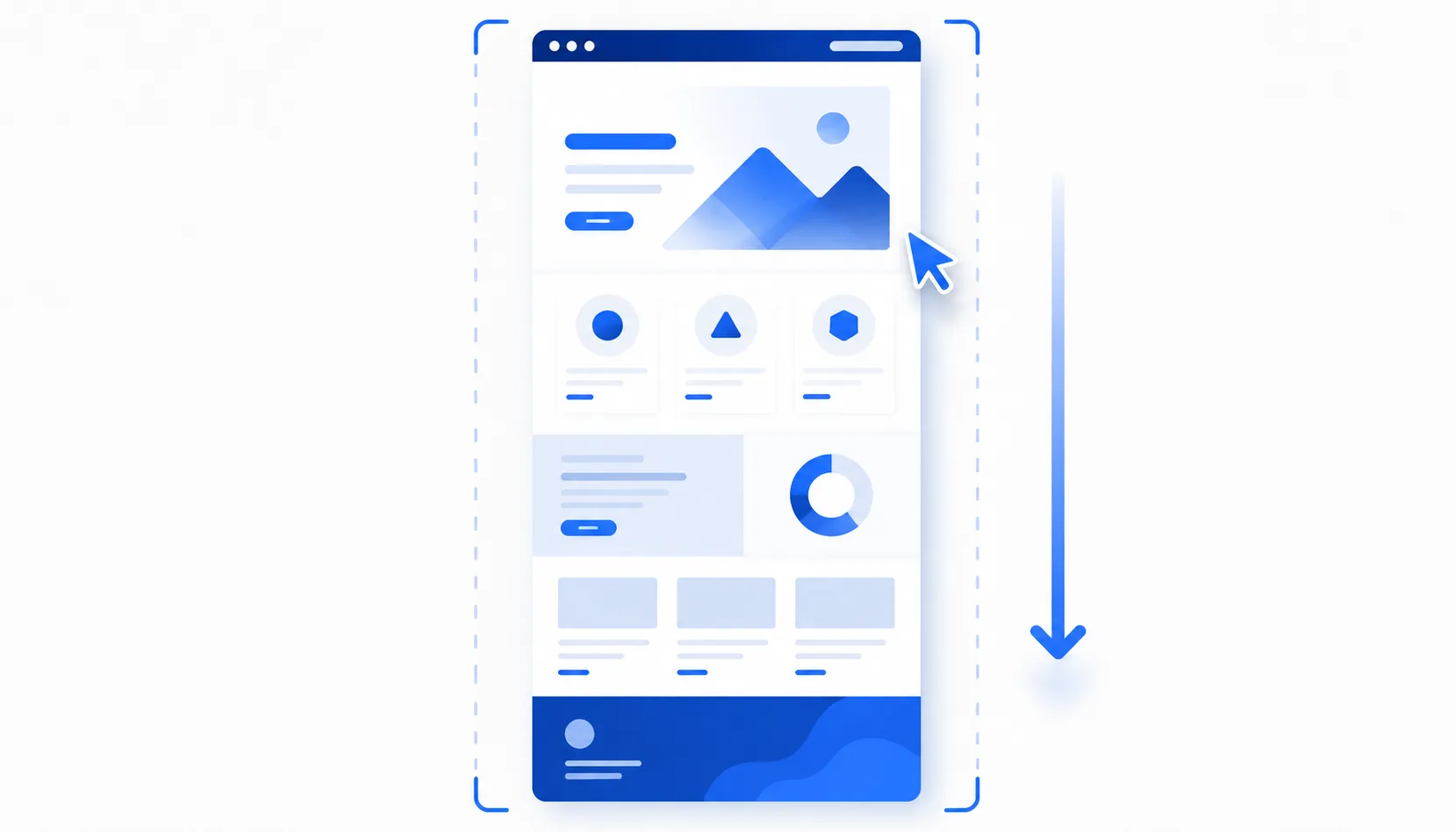

A scrolling screenshot captures a whole webpage in one tall image, including everything below the fold, by scrolling and stitching the page automatically. It is the right tool for long articles, chat threads, dashboards and feeds. The easiest way in Chrome is a one-click extension like FastCapture; here is how it works and how to handle the tricky pages.
What is a scrolling screenshot?
A normal screenshot only captures what is visible on screen. A scrolling screenshot (also called a full-page screenshot) scrolls the entire page, captures each section, and stitches them into one continuous image, so a page that is ten screens long becomes a single file.
How to capture a scrolling screenshot in Chrome
- Add FastCapture to Chrome and pin it to your toolbar.
- Open the long page, click the FastCapture icon and choose Full page.
- It scrolls from top to bottom, stitches the page, then lets you preview, annotate and save it as PNG (or copy it).
It is free, with no watermark and no sign-up, and the capture stays on your device.
Handling tricky pages
Long pages are not always cooperative. A few things to watch for:
- Lazy-loaded images. Many sites only load images as you scroll. Scroll to the bottom once so everything appears, then capture.
- Infinite-scroll feeds. Endless feeds never reach a real bottom. Scroll to the point you want and capture a region instead, or capture in sections. Automatic full-page works best on pages that actually end.
- Sticky headers and cookie banners. If a bar follows you down the page, it can repeat in the image. Close or collapse it first.
- Very long pages. Extremely tall images can hit size limits in some apps. If that happens, capture the section you need rather than the entire page.
Scrolling screenshot vs other methods
- Extension (recommended). One click handles scroll, stitch and annotate. Best for repeated use.
- Chrome DevTools. The command menu has "Capture full size screenshot", which works on many pages but offers no annotation and can miss lazy-loaded or fixed elements. See our screen capture guides for the full comparison.
Great uses for scrolling screenshots
- Archiving a long article, receipt or confirmation page.
- Saving a full chat or email thread in one image.
- Capturing an entire dashboard or report.
- Sharing a review of a whole page layout.
The bottom line
A scrolling screenshot turns an entire webpage into one shareable image. In Chrome, the fastest route is a one-click full-page tool that scrolls and stitches for you, then lets you annotate and save. FastCapture does this for free, with no watermark and no account, and handles long pages cleanly once everything has loaded.