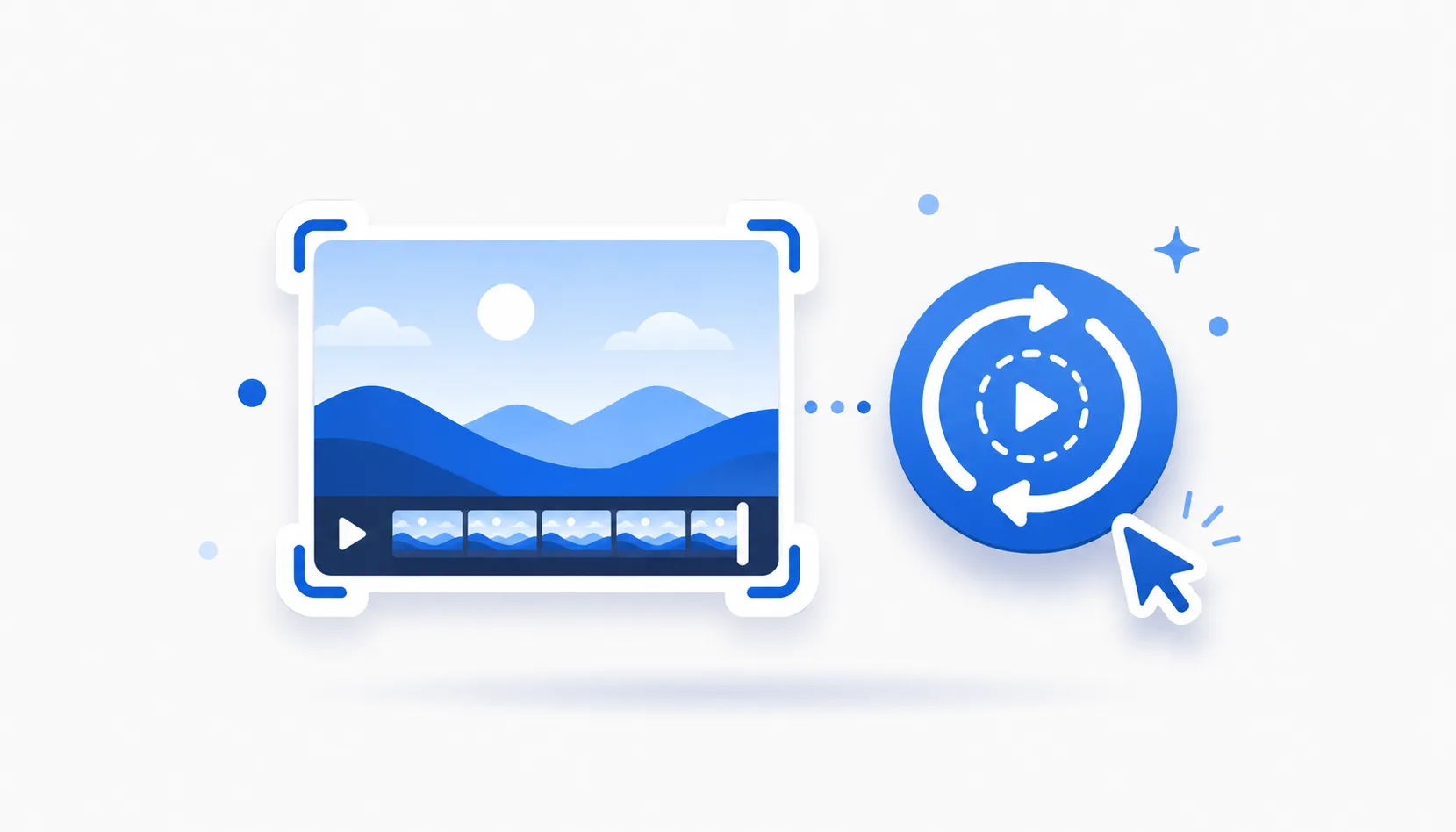
To record your screen as a GIF in Chrome, capture a short clip and export it as an animated GIF. In FastCapture, GIF export is a Pro feature; on the free tier you can record to WebM and convert it to a GIF. GIFs are perfect for short, silent, auto-looping clips in chats, docs and bug reports. Here is how to make one and when a GIF is the right choice.
When a GIF is the right choice
A GIF is short, silent and loops automatically, and it plays inline almost everywhere (Slack, GitHub, docs) with no video player. That makes it ideal for a quick UI interaction, a looping bug reproduction, or a small before-and-after. It is the wrong choice for anything long, anything with audio, or anything where quality and file size matter; for those, a WebM or MP4 video is smaller and clearer.
How to make a screen GIF with FastCapture (Pro)
- Record the short action with FastCapture. Keep it brief, because GIFs grow quickly in size.
- Export it as a GIF. GIF export is part of FastCapture Pro.
- Save or copy it and drop it into your chat, issue or document.
The free route: record, then convert
On the free tier, record your clip to WebM (free, up to 5 minutes at 30 fps), then convert that clip to a GIF with a converter or editor. It is one extra step, but it keeps you on the free plan. Keep the clip to a few seconds for a sensible file size.
Keep your GIFs small
- Keep it short. A few seconds is usually enough.
- Capture a smaller area; a smaller frame means a smaller GIF.
- Lower the frame rate for chat GIFs, where smoothness matters less.
- Beyond roughly ten to fifteen seconds, a WebM or MP4 video is smaller and sharper than a GIF.
Great uses for screen GIFs
- Bug reports, showing the glitch on a loop.
- Demonstrating a quick click-path in documentation.
- A short before-and-after of a change.
For more capture how-tos, see our screen recording guides.
The bottom line
A screen GIF is the fastest way to share a short, silent, looping clip in Chrome. With FastCapture, GIF export is a Pro feature; on the free tier you can record to WebM and convert it. Either way, keep it short, and reach for a WebM or MP4 video when the clip gets long or needs audio.